How To Change Time On Bosch Oven Touch Screen Step By Step
Changing the time on your Bosch oven touch screen is simple once you know the right steps. This guide walks you through the entire process with clear instructions, helpful tips, and troubleshooting advice. Whether your Bosch digital oven clock needs a quick reset or a full time setting update, you will find everything you need right here.
Have you ever walked into your kitchen and realized your Bosch oven clock is showing the wrong time? It happens to everyone. Maybe you just moved into a new home, or perhaps a power outage threw everything off. Whatever the reason, learning how to change time on Bosch oven touch screen is easier than you might think.
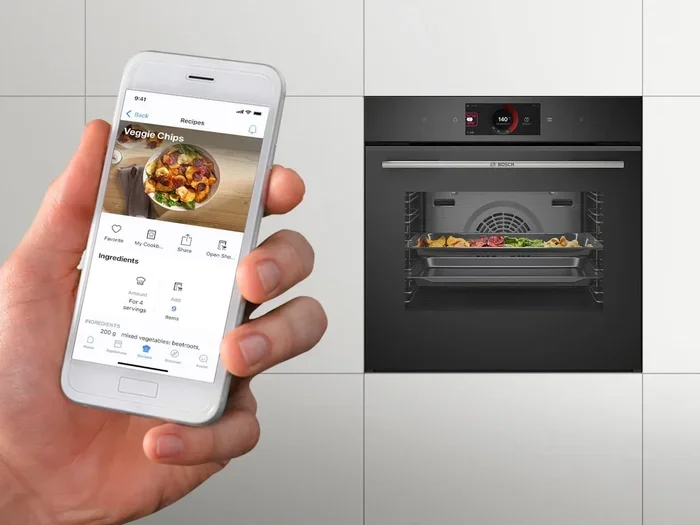
Your Bosch oven is a smart appliance with a digital touch screen that controls everything from cooking temperatures to clock settings. The good news is that adjusting the time does not require any special tools or technical skills. With just a few taps on the screen, you can have your oven clock showing the correct time again.
In this guide, we will walk you through every step of the process. You will learn the exact button sequences, what to do if things go wrong, and how to keep your Bosch oven display working perfectly for years to come. Let us get started.
Key Takeaways
- Easy Process: Changing the time on your Bosch oven touch screen takes just a few simple steps
- Model Variations: Different Bosch oven models may have slightly different button sequences for clock settings
- Quick Fixes: Most clock issues can be resolved with a simple reset or power cycle
- Preventive Care: Regular cleaning of the touch screen helps maintain responsive controls
- Professional Help: Some clock problems require a technician, especially after electrical issues
- Time Format Options: Many Bosch ovens let you switch between 12-hour and 24-hour display formats
📑 Table of Contents
Understanding Your Bosch Oven Touch Screen
Before you dive into changing the clock, it helps to understand how your Bosch touch screen oven works. The control panel on a Bosch digital oven is designed to be intuitive, but the layout can vary depending on your specific model. Most Bosch wall ovens and convection ovens feature a bright LCD or LED display at the top of the control panel, with touch-sensitive buttons below it.
How the Touch Panel Works
The touch screen on a Bosch oven control panel responds to light pressure from your finger. Unlike traditional buttons that click when pressed, touch screens use a capacitive or resistive sensor layer to detect your input. When you tap a button on the screen, a signal is sent to the oven’s main control board, which then executes the command.
Most Bosch ovens use a combination of touch icons and labeled zones on the screen. You will typically see symbols for the oven light, fan, temperature up and down, and clock settings. The clock icon or button is usually located in a prominent position so you can access it quickly. Understanding this layout makes the entire clock-setting process much smoother.
What the Display Shows
The display on your Bosch electronic oven shows more than just the current time. It also displays the set cooking temperature, remaining cook time, and any active modes like self-cleaning or convection. When you enter the clock setting mode, the display will typically show the current time with the hours and minutes blinking, indicating that you are in adjustment mode.
Some newer Bosch models also show the day of the week and a timer indicator. Understanding what each symbol means on your display will make the clock-setting process much smoother. If you are unsure about your specific model, the Bosch oven manual that came with your appliance is the best reference guide. It contains detailed diagrams and instructions tailored to your exact unit.
How To Change Time On Bosch Oven Touch Screen Step by Step
Now let us get into the heart of the matter. Changing the time on your Bosch oven touch screen follows a straightforward process. While the exact steps may vary slightly between models, the general procedure is very similar across the Bosch lineup. Here is a detailed walkthrough to guide you through it.
Preparing Your Oven
Before you begin, make sure your oven is in a ready state. You do not need to turn the oven off to change the clock, but it is a good habit to ensure no cooking cycle is running. If a recipe is currently in progress, wait until it finishes or pause it first.
Stand in front of your oven and locate the touch screen. Make sure your fingers are clean and dry. Moisture or grease on your fingertips can interfere with the touch sensors and cause unresponsive inputs. A quick wipe with a dry cloth before you start can save you a lot of frustration. Also, make sure you are standing at a comfortable height so you can see the entire display clearly.
The Step-by-Step Process
Follow these steps carefully to change the time on your Bosch oven:
- Tap the Clock Button: Look for the clock icon on your touch screen. It is often shaped like a small clock face or labeled with the word “Clock.” Tap it once to enter the clock setting mode.
- Wait for the Blinking Display: After tapping the clock button, the hours digit on the display should start blinking. This blinking indicates that the oven is ready for you to input a new time.
- Adjust the Hours: Use the up and down arrow buttons or the plus and minus icons on the screen to set the correct hour. Tap the up arrow to increase the hour and the down arrow to decrease it.
- Confirm the Hours: Once the hours are set correctly, tap the “OK” or “Start” button to confirm. The minutes digit should now begin blinking.
- Adjust the Minutes: Use the same arrow buttons to set the correct minutes. Tap up or down until the minutes display matches the current time.
- Confirm the Minutes: Tap “OK” or “Start” again to lock in the minutes. The display should stop blinking and show the updated time steadily.
- Exit the Clock Mode: If your oven does not automatically exit the clock setting mode, tap the “Back” or “Home” button to return to the main display.
That is it! Your Bosch oven clock should now be showing the correct time. The entire process usually takes less than two minutes once you are familiar with the buttons. Many owners find that they only need to do this once or twice a year.
Quick Tips for Faster Results
- Use a stylus: If your oven is mounted high and reaching the screen is awkward, a soft stylus pen can help you tap the buttons more accurately.
- Memorize the clock icon: Once you find the clock button, remember its location for future adjustments. It saves time every time you need to check or change the clock.
- Check your manual: If the steps above do not match your oven, your specific Bosch model may use a slightly different sequence. The user manual will have the exact instructions for your unit.
- Set the time right after a power outage: Power fluctuations can reset your clock. Make it a habit to check the time after any electrical disruption in your home.
Common Issues When Changing the Oven Clock
Sometimes the process of changing the oven clock does not go as smoothly as expected. Bosch ovens are reliable appliances, but like any electronic device, they can encounter occasional glitches. Here are the most common issues you might face and how to fix them.
Clock Not Responding to Buttons
If you tap the clock button and nothing happens, the first thing to check is whether the oven is properly powered. A tripped circuit breaker or a loose power connection can cause the touch screen to become unresponsive. Check your home’s electrical panel and reset any tripped breakers. This simple step resolves the issue more often than you might expect.
Another common reason is a locked control panel. Many Bosch ovens have a child lock feature that disables the touch screen. Refer to your Bosch oven manual to learn how to unlock the panel. Usually, holding down a specific button combination for three to five seconds will release the lock. Once unlocked, the clock button should work normally again.
Display Goes Blank After Reset
If the display goes blank after you attempt to change the clock, do not panic. This often happens when the oven’s control board needs a quick reset. Try turning off the oven at the circuit breaker for about thirty seconds, then turn it back on. Once the oven powers up, the display should return to normal and show the correct time.
In rare cases, a blank display after a reset could indicate a deeper issue with the control board. If powering off and on does not restore the display, it may be time to contact a Bosch service technician. However, this scenario is uncommon and usually the simple power cycle fix does the trick.
Common Mistakes to Avoid
- Pressing too hard on the screen: The touch screen does not need firm pressure. A light tap is all it takes. Pressing too hard can actually damage the sensor layer over time and lead to costly repairs.
- Changing the time during a cooking cycle: While it is technically possible, changing the clock while the oven is actively cooking can sometimes cause the oven to pause or reset your cook settings unexpectedly.
- Ignoring the blinking indicator: If the hours or minutes are not blinking, the oven is not in adjustment mode. Make sure you have properly entered the clock setting before trying to change the numbers.
- Forgetting to confirm each step: Skipping the “OK” or “Start” confirmation button means your changes will not be saved. Always confirm each adjustment before moving to the next one.
Expert Insight: According to Bosch appliance technicians, most clock-related issues are caused by user error rather than hardware failure. Taking a moment to read the on-screen prompts and following the steps in order will solve the vast majority of problems. Patience and a careful approach go a long way with oven clock troubleshooting.
Bosch Oven Clock Settings for Different Models
Bosch offers a wide range of ovens, from compact single ovens to spacious double ovens. The process for setting the oven clock is generally the same, but there are slight differences between models that are worth knowing about. Understanding your specific model can save you time and prevent confusion.
Single Oven vs Double Oven Settings
If you have a Bosch double oven, you may notice that each oven compartment has its own control panel. In most cases, the clock is shared between both compartments and is controlled from the main display panel. However, some premium models allow independent clock settings for each oven cavity. Check your manual to see if your model supports this feature.
For Bosch convection oven models, the clock setting process is identical to a standard single oven. The convection fan and heating elements do not interfere with the clock function at all. The touch screen interface remains the same regardless of which cooking mode is currently active. This consistency across models is one of the reasons Bosch ovens are so popular among homeowners.
Model Comparison Table
| Model Series | Clock Button Location | Time Format Options | Special Features |
|---|---|---|---|
| Bosch HBG Series | Bottom right of touch screen | 12-hour and 24-hour | Auto time sync with Wi-Fi |
| Bosch HBN Series | Top center of touch screen | 12-hour only | Child lock with clock override |
| Bosch HGS Series | Left side of control panel | 12-hour and 24-hour | Voice-assisted time setting |
| Bosch SMS Series | Dedicated clock icon | 12-hour and 24-hour | Smart home integration |
The table above gives you a general idea of how clock settings differ across popular Bosch oven series. Always refer to your specific model’s manual for the most accurate instructions. You can find your model number on a label inside the oven door frame or on the back of the appliance. Keeping this number handy makes troubleshooting and support requests much easier.
Quick Tips for Maintaining Your Bosch Oven Display
Your Bosch oven touch screen works hard every day. Taking a few simple steps to care for it will keep it responsive and extend its lifespan. Here are some practical maintenance tips that every Bosch oven owner should know. A well-maintained display also makes it easier to read cook times and temperatures at a glance.
Cleaning the Touch Screen
Grease, food splatters, and kitchen grime can build up on the touch screen over time. This buildup can make the screen less responsive and even obscure the display. Clean your Bosch oven touch screen regularly with a soft, damp microfiber cloth. Avoid using harsh chemical cleaners or abrasive sponges, as these can scratch the screen surface and damage the touch sensors.
For stubborn grease spots, lightly dampen the cloth with a mixture of warm water and a small drop of mild dish soap. Wipe gently and then dry with a clean, soft cloth immediately afterward. Keeping the screen clean ensures that your touch inputs register accurately every time you use the oven. A clean display also makes it easier to read the time and cooking settings at a glance.
Protecting the Screen from Damage
- Avoid using sharp objects near the screen: Keys, utensils, or pots and pans can scratch or crack the touch surface if they come into contact with it during cooking or cleaning.
- Do not spray cleaners directly on the screen: Liquid can seep behind the panel and damage the internal electronics. Always apply cleaner to the cloth first, never directly onto the display.
- Keep the screen dry: Excess moisture around the control panel can cause short circuits or display malfunctions over time. Wipe up any spills near the oven control area promptly.
- Use a screen protector: Some owners apply a thin, transparent screen protector to their Bosch oven display for an extra layer of protection against scratches and accidental spills.
Expert Insight: Bosch recommends cleaning the touch screen after every deep cooking session, especially after roasting or broiling, when grease splatter is most likely to occur. A quick wipe-down takes just seconds and prevents buildup from becoming a stubborn problem that dulls the display over time.
When to Call a Professional for Clock Issues
Most of the time, oven clock troubleshooting is something you can handle on your own with the steps outlined above. However, there are situations where professional help is the right call. Knowing the difference between a simple fix and a serious problem can save you time, money, and unnecessary frustration.
If you have tried all the steps in this guide and your Bosch oven clock still will not change, there may be an issue with the control board or the touch screen sensor. Signs that you need professional assistance include:
- The display remains completely blank even after a power reset
- The clock button does not respond at all, even after unlocking the panel
- The time resets itself repeatedly, even after you have set it correctly
- You notice a burning smell or see visible damage near the control panel
- The oven displays error codes related to the control system
In these cases, contacting a certified Bosch appliance technician is the safest option. Attempting to open the oven or repair the control board yourself can void your warranty and potentially cause further damage. Bosch offers a comprehensive warranty program, and many clock-related issues are covered under standard or extended warranty plans.
Before calling for service, have your oven model number and serial number ready. You can usually find this information on a metal label inside the oven door frame. Having this information on hand will help the technician diagnose the issue faster and bring the right replacement parts if needed. It also speeds up the warranty claim process if your unit is still covered.
Conclusion
Learning how to change time on Bosch oven touch screen is a straightforward task that anyone can handle in just a few minutes. Whether you are adjusting the clock after a power outage, moving into a new home, or simply keeping your oven’s display accurate, the steps outlined in this guide will help you get it done quickly and correctly.
Remember to always start by entering the clock setting mode, use the arrow buttons to adjust hours and minutes, and confirm each step before moving on. If you run into any issues, the troubleshooting tips and common mistake warnings in this article should help you resolve them. With regular care and proper handling, your Bosch oven touch screen will continue to work reliably for many years to come.
Now that you know exactly how to manage your Bosch oven clock, you can spend less time worrying about settings and more time focusing on what really matters: cooking delicious meals for yourself and your family. Happy cooking!
Frequently Asked Questions
Can I Change the Time on My Bosch Oven If the Screen Is Locked?
Yes, you can change the time even if the screen is locked, but you will need to unlock the control panel first. Most Bosch ovens have a child lock feature that can be released by holding down a specific button combination for three to five seconds. Once the panel is unlocked, you can access the clock settings normally.
Why Does My Bosch Oven Clock Keep Resetting After a Power Outage?
This is a common issue that occurs because the oven loses power temporarily during an outage. When the power returns, the clock may revert to a default setting or blank display. Simply follow the clock-setting steps in this guide to reset the time. If it keeps happening frequently, you may want to check your home’s electrical system for underlying issues.
Do I Need to Turn Off the Oven Before Changing the Clock?
No, you do not need to turn off the oven to change the clock. The clock function operates independently of the cooking modes. However, it is a good practice to wait until any active cooking cycle is complete before making adjustments. This ensures that the oven does not accidentally pause or reset your cook settings while you are changing the time.
What Should I Do If the Touch Screen Is Not Responding to Any Buttons?
First, check that the oven is properly powered by verifying the circuit breaker. If the power is fine, try turning the oven off at the breaker for thirty seconds and then turning it back on. A reset like this often restores touch screen responsiveness. If the problem persists, the touch screen sensor or control board may need professional inspection.
Can I Switch Between 12-Hour and 24-Hour Time Format on My Bosch Oven?
Yes, many Bosch oven models allow you to switch between 12-hour and 24-hour time formats. The option is usually found within the clock settings menu or can be accessed through a specific button combination. Refer to your Bosch oven manual for the exact steps for your model, as the process varies between series.
Is It Normal for the Bosch Oven Clock to Blink After I Set a New Time?
No, the clock should stop blinking once you have confirmed both the hours and minutes. If the clock continues to blink after you have completed all the steps, try pressing the “OK” or “Start” button again to confirm your changes. If the blinking persists, a power cycle by turning the oven off and back on may resolve the issue.